Explaining the functionality of files, draft messages, and printed letters in the case overview that you can access along with the case information:
 |
 |
|
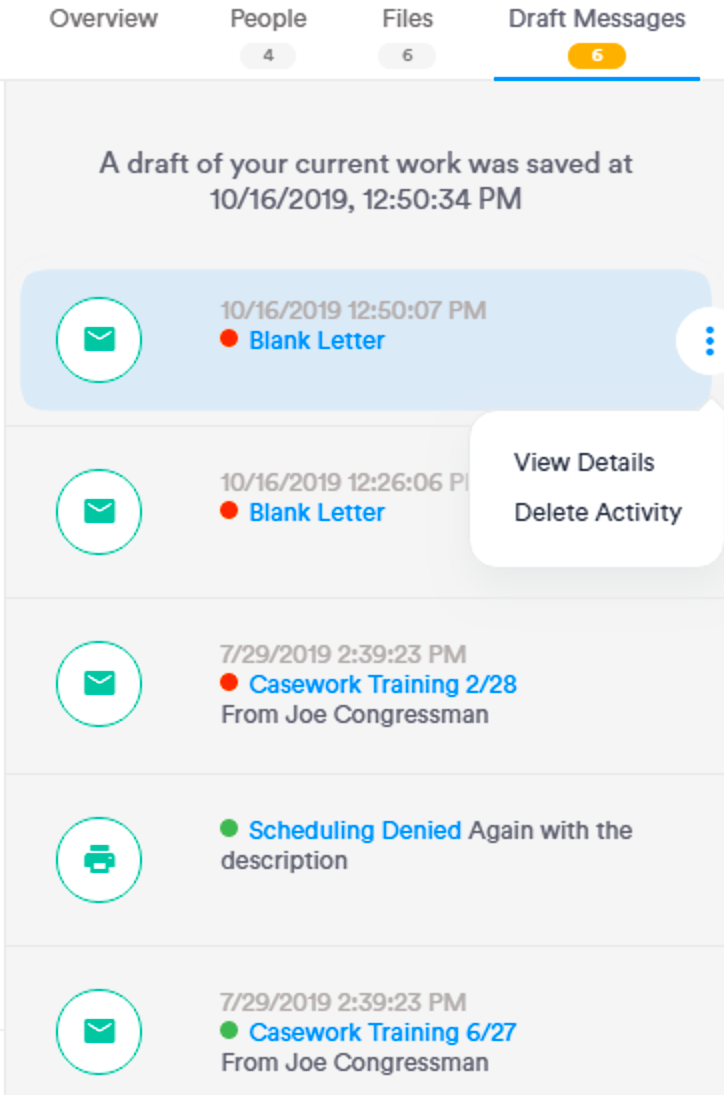
Draft Messages/Letter Activity:
Any message that was started but not sent out or deleted will appear in under the 'Draft Messages' tab.
-
The current version of a message that a user is editing will not be accessible unless they move away from the page. The page will indicate that there is a draft that has already been saved.
-
Any previous draft can be deleted or continued to work on by hovering over the activity and clicking on the snowman button that appears on the right.
-
Any letter previously printed will display a printer icon, and the option to also view, edit, or reprint the letter if needed.
|
Attachments:
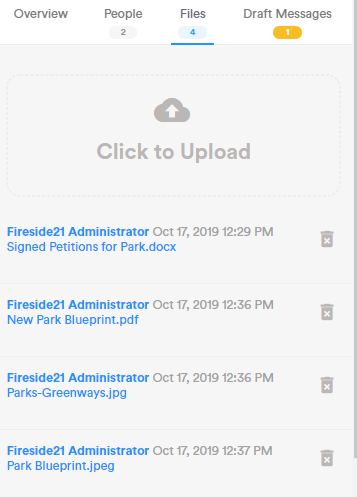
The file attachment window now has a reduced footprint, but all of the same behaviors as before:
-
Ability to manually attach almost any kind of file type to a case, and remove files when the trash bin icon appears. (Note: Once a file is removed, it cannot be undone).
-
Any files that are sent with casework messaging will automatically be added into the case, and appear under the 'Files' tab.
-
Only attachments that were manually added into the case can be removed.
|
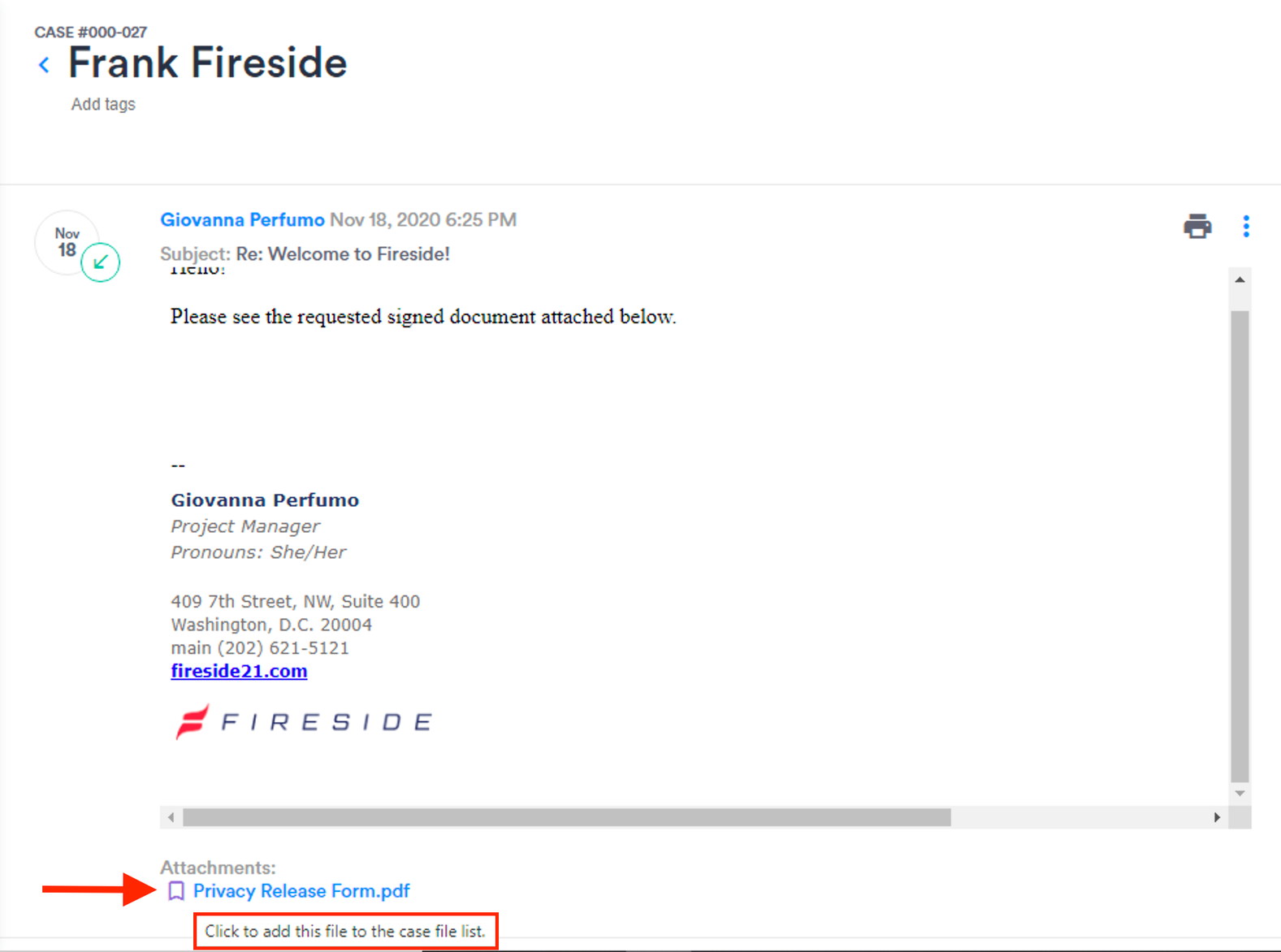
If you receive an attachment in a reply email that you would like to add to the list of case files, you can click the bookmark icon (see screenshot below) to add it to the list of file. To remove that file from the case files section, simply click the bookmark once again to it's unchecked.

Comments
Please sign in to leave a comment.